
Knowledge Base
How to Add New Users and View List of Users for Agency?
An agency can create 3 types of new users for every agency. Let’s first take a look at how an agency can create a new user and then further understand what each account role does.
Note:- Advertiser – Client of the Agency
User – Body of Agency (Partner and Employees of the Agency)
Account Type
View Only – This type of account allows only to view all the different sections of the agency login.
Report – This type of account only allows you to generate campaign reports. There are various filter options that can be used to find a specific client/advertiser.
Admin – Users with admin access will have the exact access which is available to the agency for all functions.
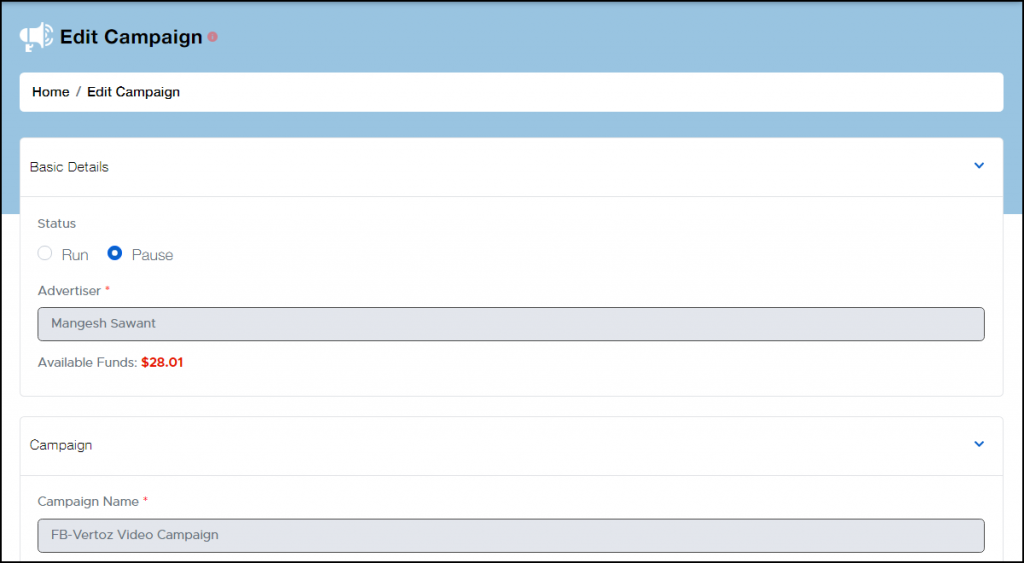
Edit campaign for View only
Step 1:
- Click on the User Management in the navigation pane on the left.
- Click on the List Users to view a list of users for the Agency as well as add new users.
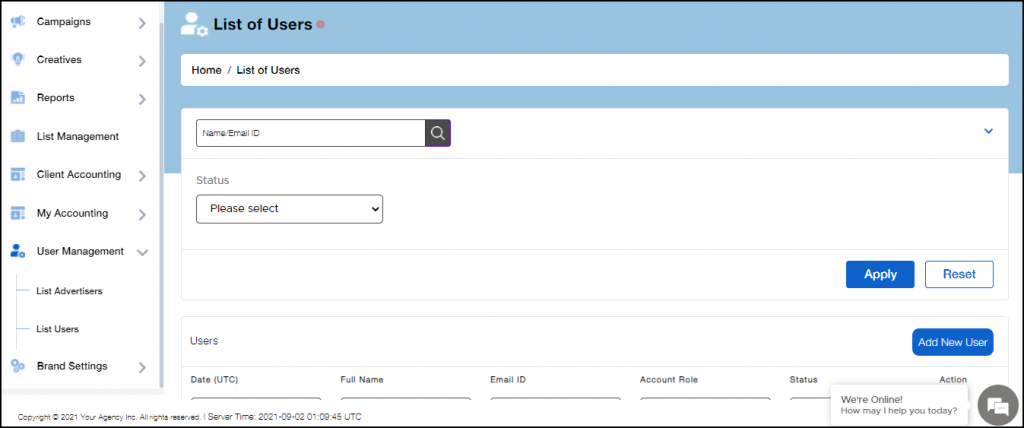
User Management Tab
Step 2:
- First, there is a filter that allows you to directly search the name of the user.
- You can also alternatively filter the search according to active and inactive users. Select the filter and click on apply.
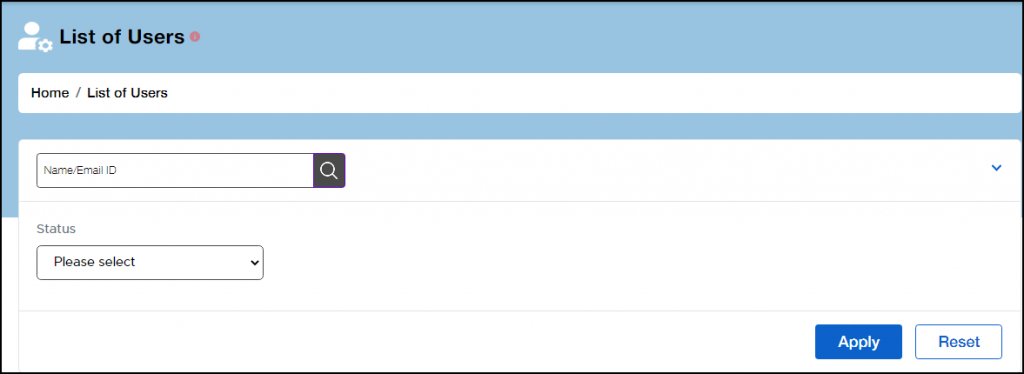
Filter for User Lists
Step 3:
- You can see the complete table of details of all users below the features.
- The Date is mentioned in UTC, Full Name states the name of the user, Email ID of the user is mentioned next, Account role states which of the 3 types of the account role and the status indicates if the user is active or inactive.
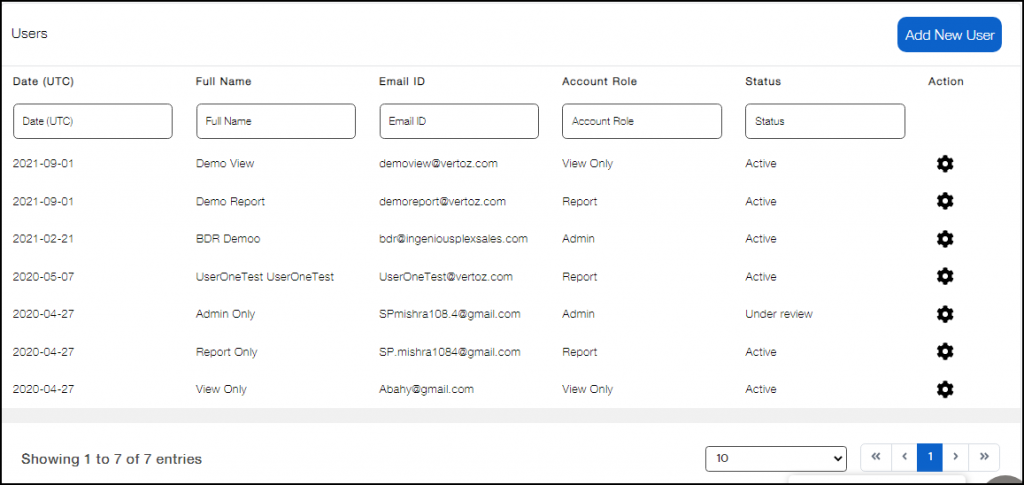
User List
Step 4:
- To create a new user click on the Add New User button at the top left of the list.
- Fill in the First Name and Last Name.
- Select the account type. Set the account status to active. You can change the Account Type and Status later. (Refer Step 5)
- Set the Email Address and Password. You can not change this later
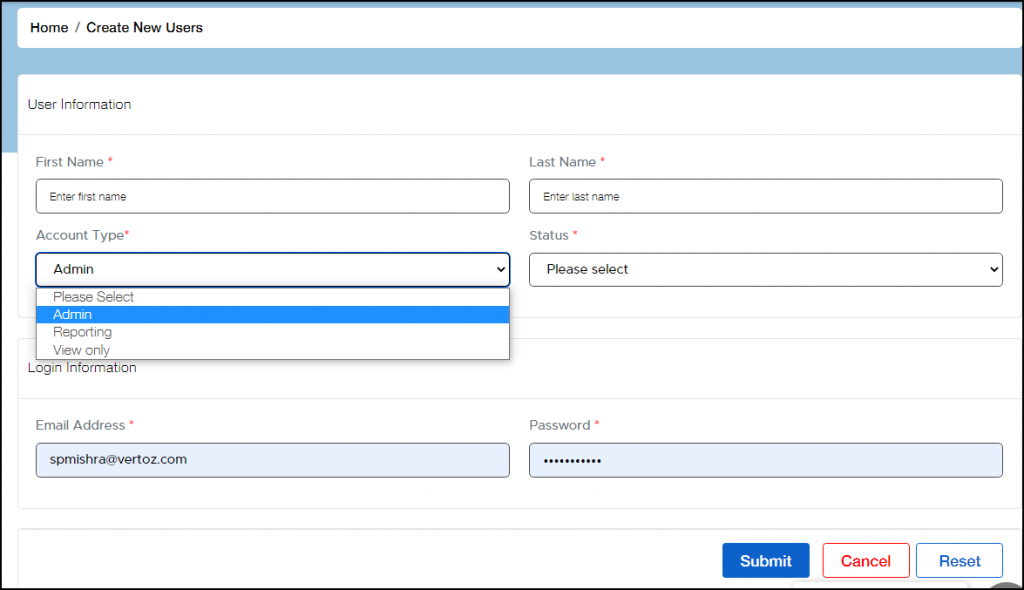
Create New Users
Step 5:
- To edit the Account Type and Status Click on the settings icon under the action tab.
- Select the edit user option
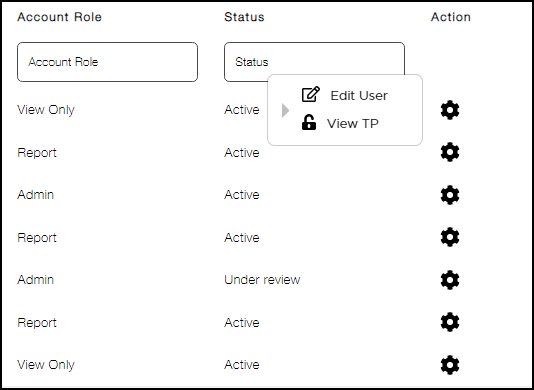
User List
Step 6:
- Here you can select Account Type between View only, Report and Admin.
- Also, you can change active user to inactive.
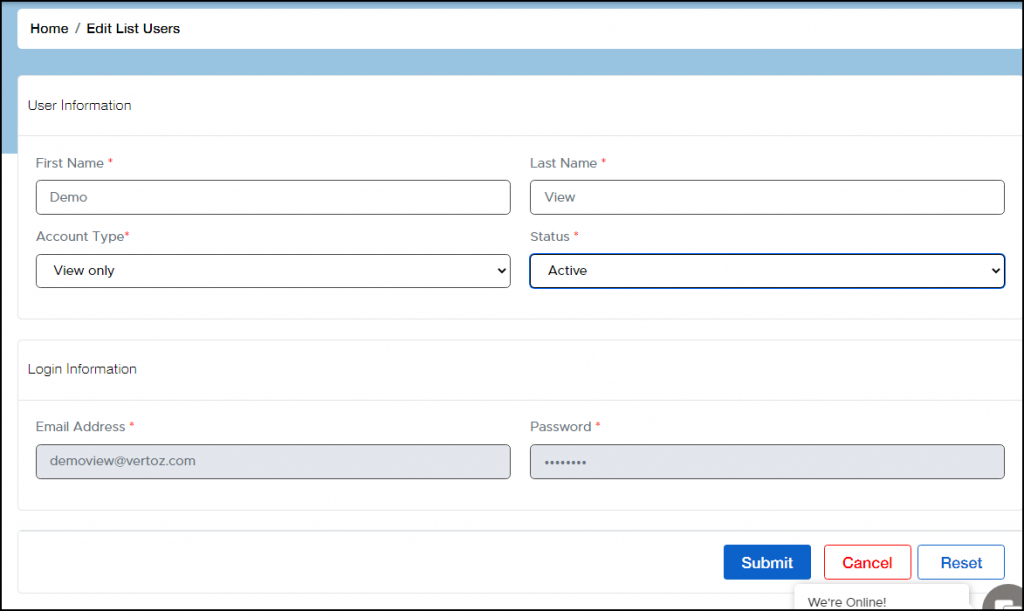
Edit list users
If you have any additional queries, please reach us at info@flamyads.com.